
Gallery内に挿入したテキストコントロールに、Apps側で作成したテンキーで入力させます。
キーボード入力も可能です。
テンキーには1文字ずつ消す「BS」ボタンと、一気にクリアさせる「CS」ボタンを設けています。
目次
サンプル
テキストボックスの隣にある編集ボタンをOnSelectすることで、そのテキストボックスをFocusし、テンキー入力を可能にしています。
ツリー
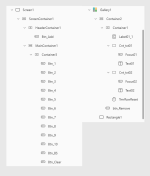
追加ボタン
Galleryの外に置きます
Onselect
コントロール名:Btn_Add
Set(_id, GUID());
Collect(
    colRows,
    { RowId: _id, Value1: "", Value2: "" }
);
// ----入力先は未選択で開始
UpdateContext({
    ctxActiveItemId: Blank(),
    ctxActiveTarget: Blank(),
// ----Timer方式用の“リセット信号”変数
    ctxResetRowId: Blank(),
    ctxResetTarget: Blank(),
    ctxPulse: false
});
テンキーボタン(例:Btn_1)
Galleryの外に置きます
水平コンテナに置いて、横一列に並べています
Appearance
'ButtonCanvas.Appearance'.OutlineBorderColor
RGBA(40, 134, 222, 1)BorderStyle
BorderStyle.SolidBorderThickness
2Height
30IconStyle
'ButtonCanvas.IconStyle'.OutlineOnSelect
If(
    IsBlank(ctxActiveItemId) || IsBlank(ctxActiveTarget),
        Notify("入力先を選択してください。", NotificationType.Information),

    ctxActiveTarget = "1",
        With(
            { cur: Coalesce( LookUp(colRows, RowId = ctxActiveItemId, Value1), "" ) },
            UpdateIf(colRows, RowId = ctxActiveItemId, { Value1: cur & "1" })
        );
// ----Timerを起動
        UpdateContext({
            ctxResetRowId: ctxActiveItemId,
            ctxResetTarget: "1",
            ctxPulse: !ctxPulse
        }),

    ctxActiveTarget = "2",
        With(
            { cur: Coalesce( LookUp(colRows, RowId = ctxActiveItemId, Value2), "" ) },
            UpdateIf(colRows, RowId = ctxActiveItemId, { Value2: cur & "1" })
        );
        UpdateContext({
            ctxResetRowId: ctxActiveItemId,
            ctxResetTarget: "2",
            ctxPulse: !ctxPulse
        })
)
テンキーボタンの2、3、4…を作成するときは以下の2つの ”1″ を対応するボタンの数値に変更します
UpdateIf(colRows, RowId = ctxActiveItemId, { Value1: cur & "1" })UpdateIf(colRows, RowId = ctxActiveItemId, { Value2: cur & "1" })Text
"1"Width
50テンキー(BS)
1文字削除するためのボタン設定。
デザイン的なところは数字ボタンと同じになので割愛
OnSelect
If(
    IsBlank(ctxActiveItemId) || IsBlank(ctxActiveTarget),
        Notify("入力先を選択してください。", NotificationType.Information),

    ctxActiveTarget = "1",
        With(
            { cur: Coalesce( LookUp(colRows, RowId = ctxActiveItemId, Value1), "" ) },
            UpdateIf(
                colRows, RowId = ctxActiveItemId,
                { Value1: If(Len(cur) > 0, Left(cur, Len(cur) - 1), "") }
            )
        );
        UpdateContext({
            ctxResetRowId: ctxActiveItemId,
            ctxResetTarget: "1",
            ctxPulse: !ctxPulse
        }),

    ctxActiveTarget = "2",
        With(
            { cur: Coalesce( LookUp(colRows, RowId = ctxActiveItemId, Value2), "" ) },
            UpdateIf(
                colRows, RowId = ctxActiveItemId,
                { Value2: If(Len(cur) > 0, Left(cur, Len(cur) - 1), "") }
            )
        );
        UpdateContext({
            ctxResetRowId: ctxActiveItemId,
            ctxResetTarget: "2",
            ctxPulse: !ctxPulse
        })
)
テンキー(クリア)
コントロール内の数字を一気に削除するためのボタン
デザイン的な設定は他テンキーボタンと同じなので割愛
OnSelect
If(
    IsBlank(ctxActiveItemId) || IsBlank(ctxActiveTarget),
        Notify("入力先を選択してください。", NotificationType.Information),

    ctxActiveTarget = "1",
        UpdateIf(colRows, RowId = ctxActiveItemId, { Value1: "" });
        UpdateContext({
            ctxResetRowId: ctxActiveItemId,
            ctxResetTarget: "1",
            ctxPulse: !ctxPulse
        }),

    ctxActiveTarget = "2",
        UpdateIf(colRows, RowId = ctxActiveItemId, { Value2: "" });
        UpdateContext({
            ctxResetRowId: ctxActiveItemId,
            ctxResetTarget: "2",
            ctxPulse: !ctxPulse
        })
)
Gallery1
Items
colRowsTemplateSize
If(Self.Layout = Layout.Horizontal, Min(280, Self.Width - 60), Min(100, Self.Height - 60))数値1のコンテナ(Cnt_txt01)
数値1と数値2のコンテナは、上位に水平コンテナを置いて横並びにしています
ボタン(Focus01)
Cnt_txt01の中に格納
Appearance
'ButtonCanvas.Appearance'.SecondaryBasePaletteColor
RGBA(189, 178, 176, 1)BorderStyle
BorderStyle.NoneFontColor
RGBA(0, 0, 0, 1)IconStyle
'ButtonCanvas.IconStyle'.FilledOnSelect
UpdateContext({ ctxActiveItemId: ThisItem.RowId, ctxActiveTarget: "1" });X
Text01.Width -Self.Width -5数値1(Text01)
挿入するのは「TextInput(テキストインプット)」です
ツリーでは数値1をボタンの下にしておかないと、ユーザーがボタンを押せなくなります
Default
Coalesce(ThisItem.Value1, "")OnChange
If(
    IsMatch(Self.Text, "^\d*$"),
    // キーボード編集もこの行をアクティブに確定
    UpdateContext({ ctxActiveItemId: ThisItem.RowId, ctxActiveTarget: "1" });
    UpdateIf(colRows, RowId = ThisItem.RowId, { Value1: Self.Text }),
    Notify("数字のみ入力可能です。", NotificationType.Warning)
)
OnSelect
UpdateContext({ ctxActiveItemId: ThisItem.RowId, ctxActiveTarget: "1" })Placeholder
"1つ目の数字"数値2のコンテナ(Cnt_txt02)
2つ目のテキストインプットとボタンを格納するためのコンテナ
ボタン(Focus02)
基本的なデザインは1つ目と一緒のため割愛
OnSelect
UpdateContext({ ctxActiveItemId: ThisItem.RowId, ctxActiveTarget: "2" });数値2(Text02)
挿入するのは「TextInput(テキストインプット)」。
基本的なデザインは数値1と同じなため割愛。
Default
Coalesce(ThisItem.Value2, "")OnChange
If(
    IsMatch(Self.Text, "^\d*$"),
    UpdateContext({ ctxActiveItemId: ThisItem.RowId, ctxActiveTarget: "2" });
    UpdateIf(colRows, RowId = ThisItem.RowId, { Value2: Self.Text }),
    Notify("数字のみ入力可能です。", NotificationType.Warning)
)
OnSelect
UpdateContext({ ctxActiveItemId: ThisItem.RowId, ctxActiveTarget: "2" })Placeholder
"2つ目の数字"タイマー(TmrRowReset)
Gallery内に挿入
裏設定のため非表示にしておきます
AutoStart
// ctxPulse のトグル+対象行一致+対象入力欄が指定されている時だけスタート
ctxPulse && (ctxResetRowId = ThisItem.RowId) && !IsBlank(ctxResetTarget)
Duration
50OnTimerEnd
If(
    ctxResetTarget = "1",
        Reset(Text01),
    ctxResetTarget = "2",
        Reset(Text02)
)
Visible
false削除ボタン(btn_Remove)
利便性向上の一環として
OnSelect
Remove(colRows,ThisItem)